


This page rounds up everything that changed in RentalTide between October 20 and November 20, 2026. It was a big month, and tours got the most attention: a new tour editor, private charters sold by length, events, a rebuilt departure page, better crew tools and a lot of small fixes that make a busy tour day calmer.
It is written for owners and managers who use RentalTide every day, and for anyone on your team who wants to know what is new. Each section says what changed, why it matters, and where to find it in the app. Where a help page goes deeper, there is a link.
Most changes are on for everyone. Where something is a setting you turn on, the page says so and names the setting. Nothing here changes how your existing bookings, prices or messages work unless you switch it on, except where a change fixes something that was wrong.
Highlights
- A new tour editor. Every tour is now set up on one page, with a live list of problems, a practice booking and a preview of what customers will see.
- Private charters sold by length. Customers pick a day, how long they want the boat, and a free start time. Each booking makes its own private departure, and the boat is never double-booked.
- Events. Sell classes, races and special nights with registration windows, member early access, a waitlist and a built-in promotion email.
- A rebuilt departure page. Guests, crew, notes, booking answers and photos for one trip on one screen, with "Message guests" and "Move anyway".
- Change a tour booking after it is made. Add or remove guests by ticket type, discount some of them, and see the price per person, without cancelling and rebooking.
- Crew tools. One notice per person with Accept or "Can't work it", crew call times that shape shifts, a Crew by departure report, and tour tips that can go to the crew who ran the trip.
- Custom manifests you design, print or PDF, and email to the crew before departure.
- Group reservations open on one tabbed page: a guest roster, waivers, invoices with deposits, tips and a full message history.
- The booking page studio. Design your public booking page from sections, test layouts against each other and see which one books more.
- Gift Cards & Passes on one page, with passes and vouchers you can redeem online, at the Walk-Up Hub and on staff bookings, plus experience gift cards and gift cards sold at the till.
- Reports rebuilt, with a report builder, saved reports, PDF export and scheduled report emails.
- Your AI assistant does much more. The RentalTide connector for Claude, ChatGPT and Perplexity now has over 220 tools.
Tours
The new tour editor
Every tour is now set up on one page instead of a step-by-step dialog. It has been the default for every location since November 9.
New tour starts with What are you selling? and four choices: Seats at set times (scheduled departures where people book seats), A private charter (one group has the whole boat), An event, or A rental (which opens the Fleet listing editor). You can also start from a copy of an existing tour. The choice only picks the layout. You can switch later without losing anything.
A tour sold by seats has these sections, each edited in place:
- What you're selling: name, kind, and whether it is booked by separate people, one group or either.
- Where it runs: the location. "Run it at another location" copies the tour there, hidden.
- What it runs on: the boats or gear, or "No equipment: sell seats", plus seats per departure and the fewest people needed to run.
- When it runs: every week, chosen dates, by the moon, or arranged by staff each time. Start times, sunrise and sunset starts, the season, skip dates, and how far ahead to publish departures.
- Tickets: ticket types, member prices, bill-later tickets, a group price, price changes by date, and extras.
- Sell as a series: sell a set of dates together, like a summer camp week.
- Who can book: taking bookings, shown on the booking page, members only, spots left, and confirm before charging.
- Before the trip: meeting point, pickups, waiver, policies, guest names, Next Steps questions and the confirmation message.
- More settings: one row per group, covering the booking window, minimums, deposit and balance, checkout, emails, crew, the day of the trip, weather, guest changes, the booking page and advanced options.
Beside the sections are three panels:
- Checks lists anything that stops the tour from being bookable, and what is fine. Each problem has a link that lands on the exact switch to fix it. It checks as you type and again once you save.
- Try a booking runs a pretend booking on a real departure of the saved tour: does the group fit, and what would it pay. Nothing is booked. It also has a link to open your booking page.
- Coming up shows the next departures.
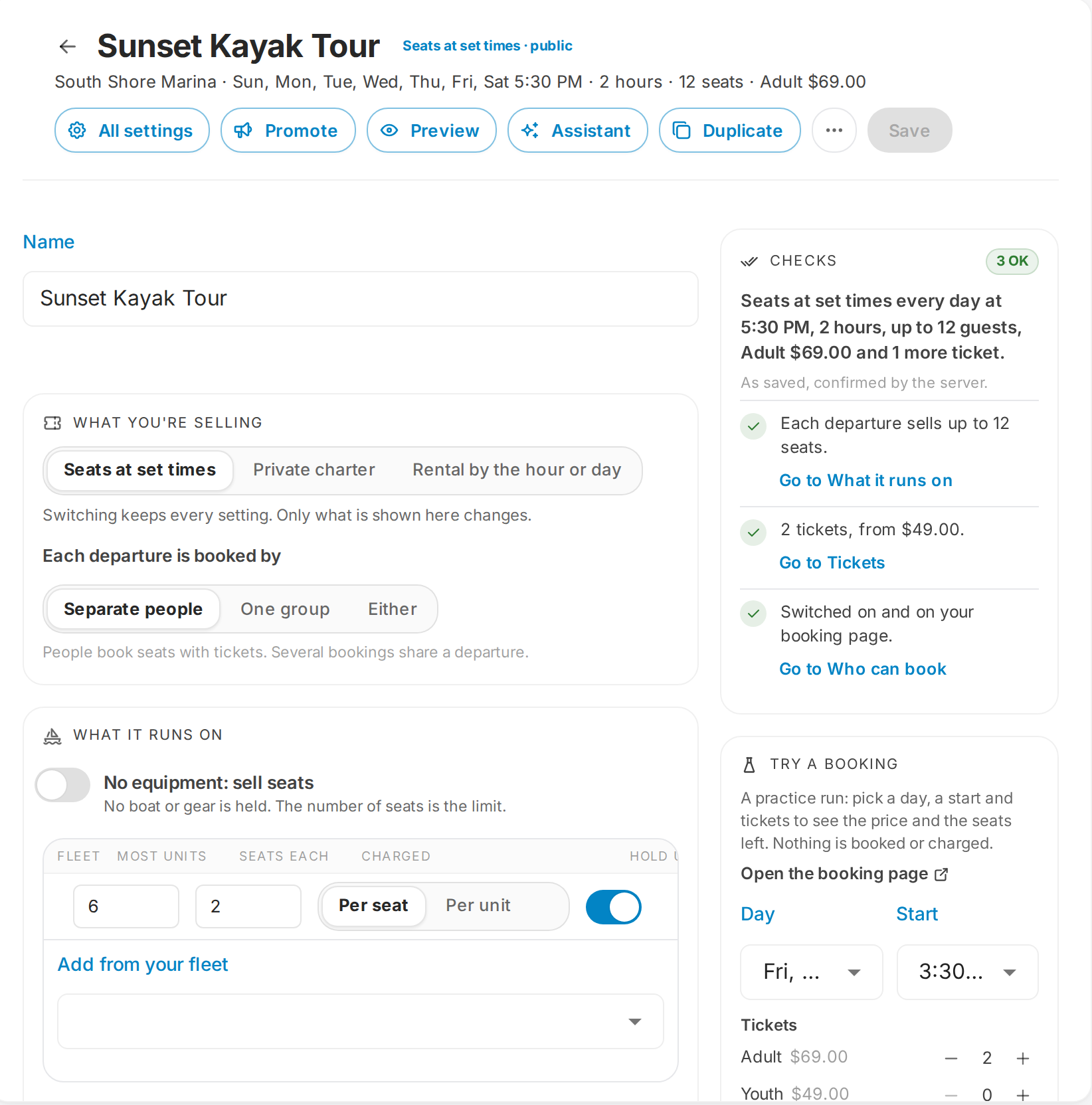
The tour editor: sections on the left, Checks and Try a booking on the right. Shown with demo data.
In the header you will find Preview (the tour as customers will see it, including unsaved changes), All settings (every setting the tour has, searchable, including by its old name), Duplicate, Save, and the Assistant. The header stays on screen as you scroll, and leaving with unsaved edits asks whether to save first. Open the classic editor is still there if you prefer the old dialog. Both save the same tour the same way.
Why it matters: setting up or fixing a tour no longer means clicking through a long dialog, and you can see at a glance why a tour is not bookable.
Where: Tour Hub > Products > New tour, or click any tour. Read more on the Tour Hub page.
One Tours list
Tour Hub > Products is now the one list of everything you run: tours, charters, and the Fleet listings you sell by length. Each row says in one line how the tour runs, whether it is Public, Staff only or Hidden, and Not bookable with the reasons when something is stopping sales. These are the same checks the editor shows.
- Filter by Kind, Status and Boat, and search by name.
- Switch between Cards and List. Cards show each tour's photo, "from" price, length, group size and schedule.
- Each row's ... menu has Generate departures, Departures, Show on or Take off booking page, and Switch on or Switch off.
- Duplicate makes a copy named "(copy)" with every setting of the original (prices, rules, content, crew, Next Steps) but no departures or bookings. The copy starts hidden and switched off.
- Archive takes a tour off sale and keeps its history. Delete only works on a tour that has never been booked. "Show archived" brings archived tours back into view.
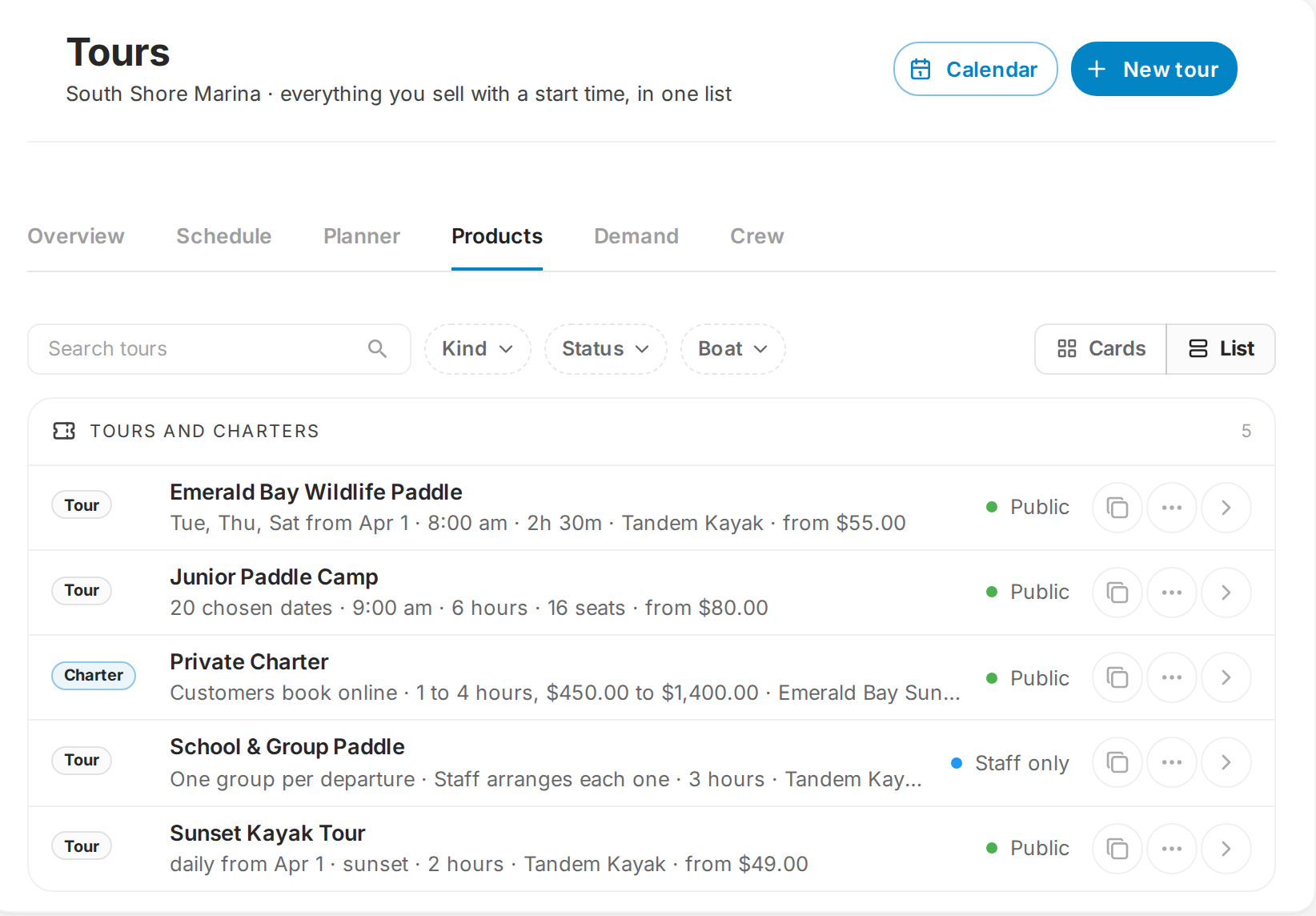
Tour Hub > Products: one list of tours and charters, with filters and Cards or List. Demo data.
The old Tours tab under Fleet & Offerings is gone. Old links to it open the new list.
Private charters sold by length
You can now sell a private charter where the customer chooses how long they want the boat. Nothing is scheduled ahead, so there are no empty departures to manage. Each booking makes its own private departure.
How it is set up. New tour > A private charter. The charter layout shows:
- The boat: which boat and the most guests. The price is for the whole group.
- Lengths and prices: each length (for example 2, 3 or 8 hours) with its whole-boat price, plus Open from, Back by, Starts every, the turnaround between trips, the deposit, the hours by day and the dates you sell.
- Who books it: staff only (after agreeing a time with the customer), or customers online.
Seasons, pricing rules, member prices per length and extras all apply.
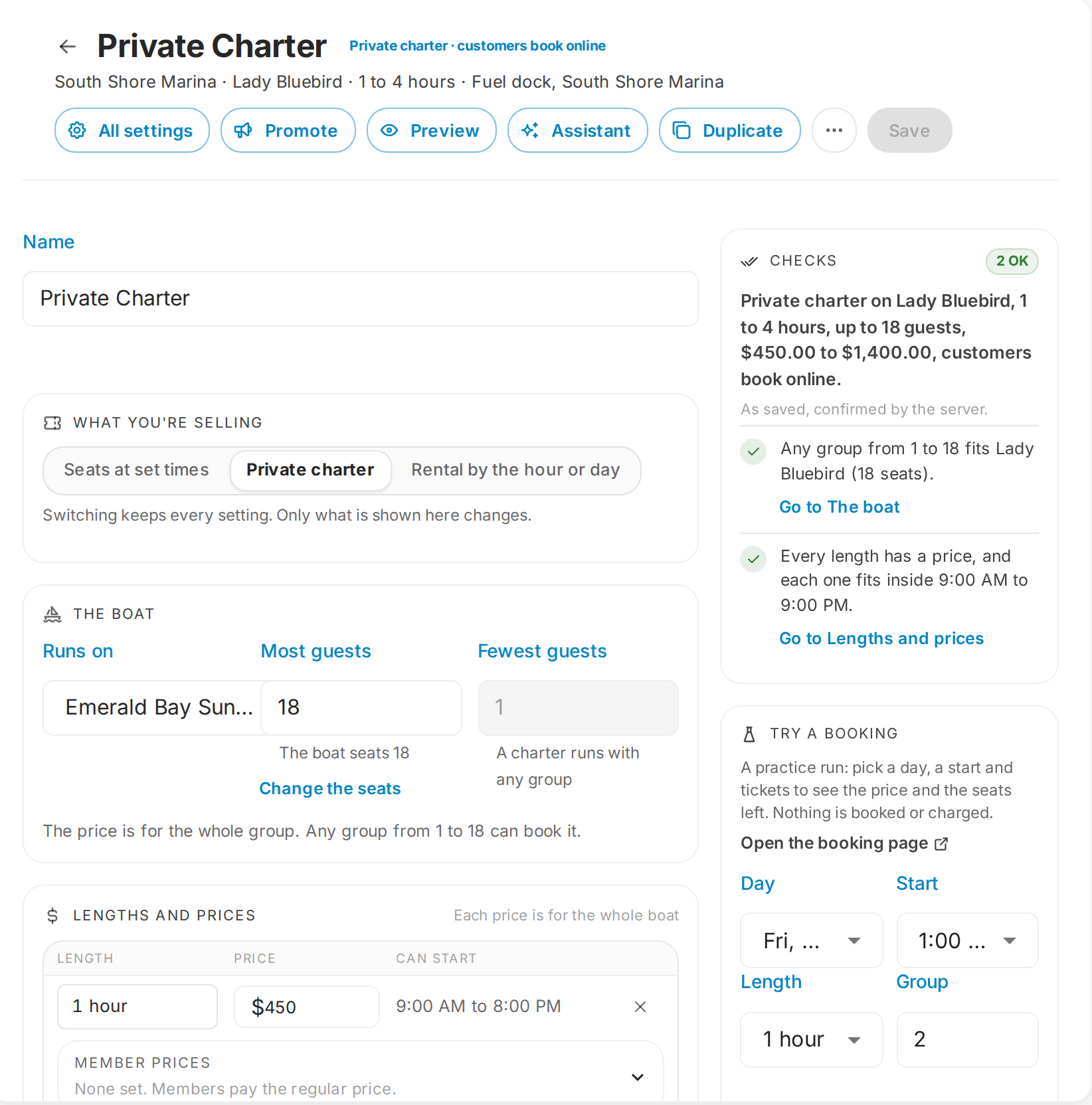
A private charter in the tour editor: the boat, lengths and prices, and a practice booking. Demo data.
What customers see. On the booking page they pick a day, then a length, then a start time and their group size. A length is only offered at start times that come back by your Back by time, and only when the boat is free for the whole trip plus turnaround. The check covers other tours and rentals that share the boat, so two charters never overlap. If two people try to take the same start at the same moment, the second sees "That time was just taken. Nothing was charged." and can pick another start.
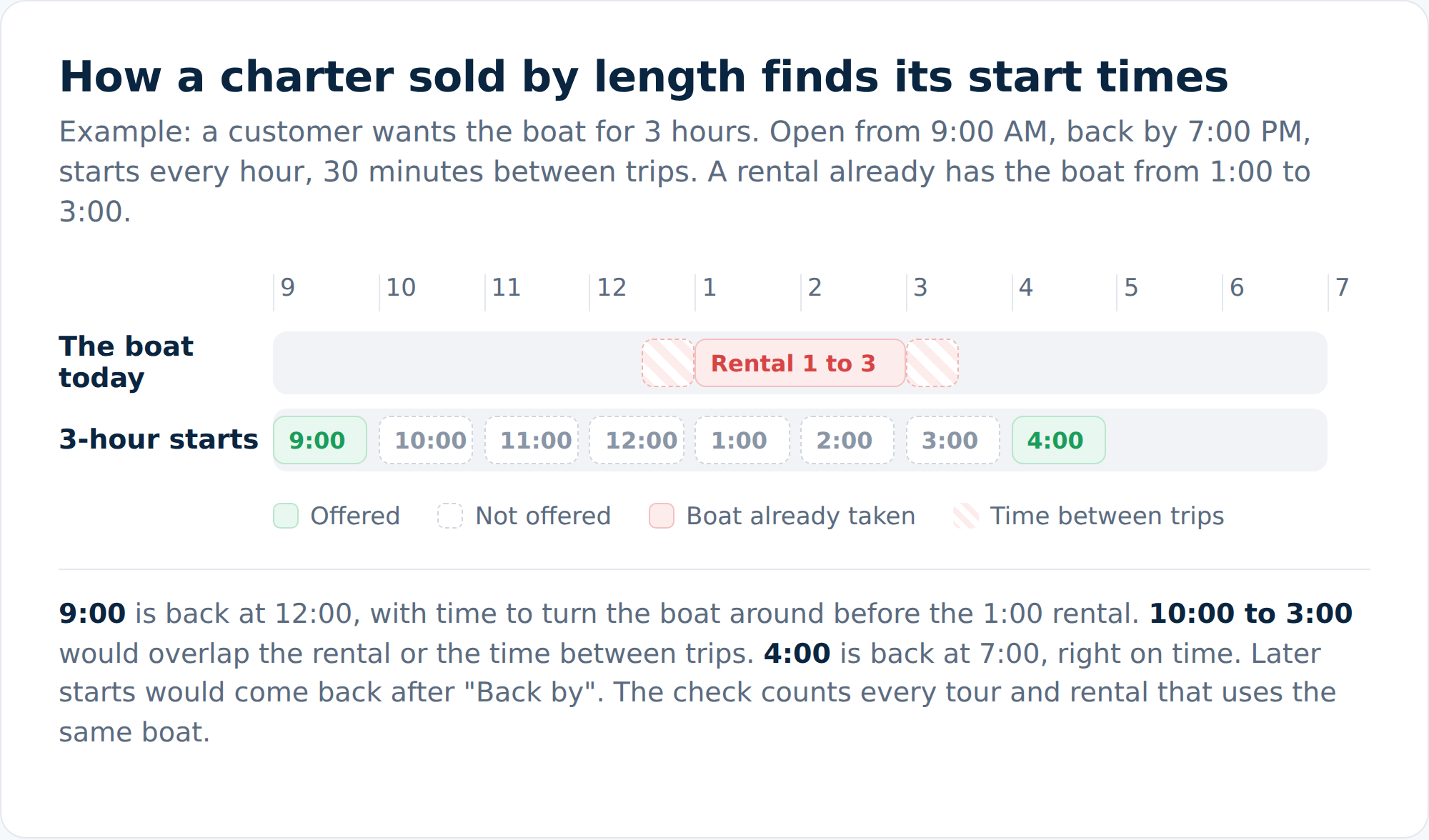
Only start times that fit the whole trip, the time between trips and your Back by time are offered.
What staff do. Book one with New charter from the tours calendar or Add departure on the staff booking page: pick the tour, the day and the length, and the free start times are listed with the price (staff can type a different price). Change length on a booked charter reprices it.
Turning a rental into a charter. If you sell a boat as a Fleet listing with hourly packages, Convert to a charter tour (in the Tours list, on the Fleet listing's row menu) shows you the tour it would make and a price table before anything is saved. Existing bookings stay on the listing.
A few limits: charters sold by length are not sent to OTAs, OCTO resellers or Google Things to Do. Your website can still get the free start times and booking links through the tours API. In the Tide Pass app, a charter hands the customer to the web booking page to finish.
Events
An event is a tour with one date, or a short run of days: a class, a race, a full-moon night, a community day. Events now have their own layout and tools.
Setting one up. Tour Hub > Products > New tour > An event. The event layout has:
- Basics and Tickets, with a capacity per ticket type.
- Access: open to everyone or members only.
- Registration: when it opens, early access for members, when it closes, seat limits per customer and ages.
- Waitlist, and Publish: publish now, schedule it, or keep it as a draft; listed, unlisted or by private link.
"Make this an event" converts a one-off tour (it asks for the date), and "Convert to tour" goes the other way. If you move the date of an event people have registered for, RentalTide asks first and can email them.
What customers see. When a location has an event listed, the booking page shows Rentals / Tours / Events tabs. Event cards carry badges like Registration opens, Few spots left, Sold out, Free and Members. Each event has its own page with Register, "Join the waitlist", "Notify me" (they are emailed or texted when registration opens) and "Add to calendar". Customers can also subscribe to your events calendar. A free registration says "Nothing to pay. No card needed." and the confirmation says "You're registered".
Promoting it. Promote, in the event editor and on a departure, builds an announcement, a member early-access email or a last-call email, with a live preview, a test send and results so far. To protect your list, an email to your whole list can only go out after you have sent yourself a test. Sending again to the same audience offers to send only to people who have not had it.
Running it. Calendar > Events lists your events (List or Month). Clicking one opens the editor, "Guests" opens the roster, and a chip shows how many more people are needed when an event is under its minimum. The Tours month view shows an "Events Today" chip.
Automations can now start on registration opening, member early access, spots running low, registration closing, and new departures being published.
The departure page
The page for one departure has been rebuilt so everything about a trip is in one place. Open it from the tours calendar, Tour Hub > Schedule, or "Open departure" on a reservation's tour item.
- Tabs: General, Reservations, Questions, Staff, Resources and Photos, plus Passengers when the tour uses passenger checks.
- Departure notes sit at the top. Staff-only notes never print on the crew manifest.
- Edit in place: click a value or its pencil to change it.
- Reschedule by clicking the start time. The dialog previews the guests and any clashes, can email guests, asks for a reason, and offers Move anyway when you know better than the clash check.
- Who can book: switch a departure between Anyone and Private trip after it was created, or use Make it a private trip and Open to the public in the ... menu. A private trip disappears from the public list and gets "Copy team booking link".
- + Add reservation opens a small dialog: find the customer or add a new one, type a count for each ticket type (capped at the seats left), and create. "Full booking" still opens the full booking page.
- Message guests (in the ... menu) sends a text, an email or both to everyone booked on that departure, with a live count of who will get it. Handy for "the 8:30 is running 20 minutes late". Each send is listed under Broadcast.
- Photos: trip photos uploaded here show on the customer's Next Steps page after the trip.
- On the calendar, a departure's pop-up has an Open for booking switch with Undo.
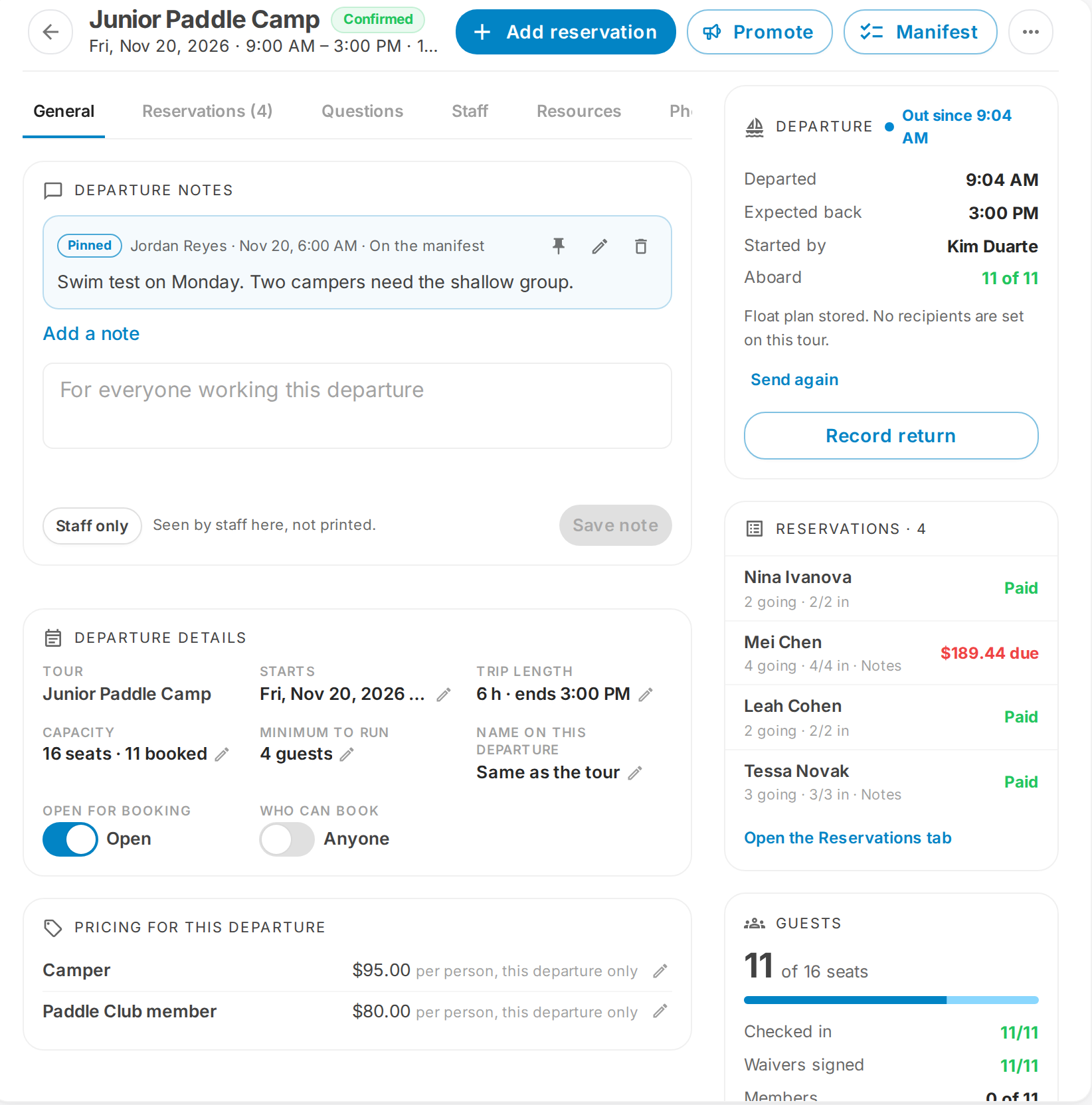
The departure page: notes at the top, details you edit in place, and the trip and its reservations on the right. Demo data.
A tour seat's own booking page now shows whether its departure is Confirmed or Pending, for example "3 more to run".
Read more on Tour Operations.
Seats, pending counts and the tours calendar
The tours month view now looks and works like the rentals month view.
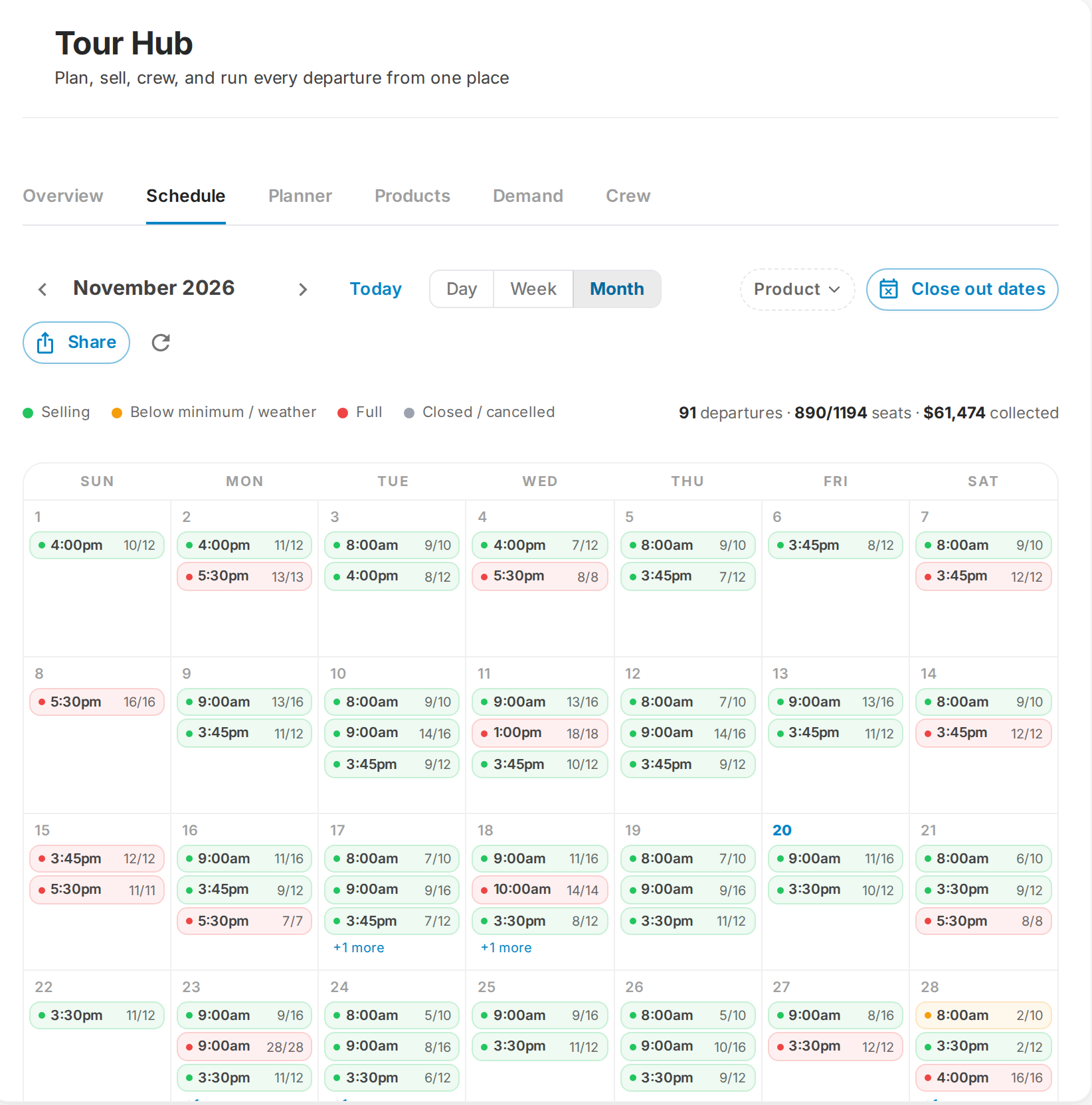
Tour Hub > Schedule, month view: every departure shows seats taken out of capacity, green while selling and red when full. Demo data.
- Each departure is a bar in its tour's colour with the time, the tour name and seats, plus a small status dot. Set a tour's colour in the tour editor under More settings > Booking page > Calendar colour.
- Seats now count everything that is taken: booked, pending and held seats, out of capacity. A departure with six pending seats reads 6/6, not 0/6. The legend reads "Seats taken / capacity".
- Hover a departure to see its crew (with a tick, question mark or cross for each person's answer) and its reservations.
- Show empty departures is a switch.
- The + on a day offers Add one-time tour, Add note, and Blackout this day (or Remove blackout). Before closing a day, RentalTide shows the bookings already on it and makes clear they are not cancelled. A closed day turns red and reads Closed.
- Tours Calendar is in the sidebar, and the calendar opens on whichever view (Tours or Rentals) you used last.
- Tour Hub > Schedule on All locations shows every location's departures, colour-keyed, and asks you to pick one location for actions that need one.
- The tour calendars, the public availability page and the weekday chips follow your location's first day of the week.
- A departure that runs over several days shows on every day it covers.
A departure also goes back on sale on its own when its last booking is cancelled, deleted or moved.
Moving guests between departures and tours
- Move anyway. When you move a guest to another tour on the same boat, the booking you are moving no longer blocks its own boat. If there is a real clash, staff with the Edit Bookings permission see Move anyway, and the override is recorded.
- Move to another tour. From a reservation's tour item, "Move to another tour" books the new tour on the same reservation and carries the money already paid across, as payment on the new tour or as credit. No cancel, refund and rebook.
- Customers can move themselves. Turn on Guest moves for a tour (tour editor > More settings > Guest changes) and customers can move their own booking to another departure of the same tour, at the same price, within the window you set. Off until you set it.
Changing a tour booking after it is made
School and group numbers change after booking. You can now fix them on the reservation instead of cancelling and starting over.
On the reservation's Offerings tab, a tour line's menu offers:
- Change guests: type the new number, or change it by ticket type (for example add one Youth to two Adults). Guests already booked keep the price they booked at; a new ticket type is priced at today's rate. You see the new total before you save. If you go below the number of named guests, RentalTide asks which guests come off. A waiver they signed stays on their profile.
- Discount some guests: take an amount or a percentage off a number of guests, or comp them, with a reason and an optional promo code.
- Recalculate pricing now works on tour lines.
- Change price now shows the price per person beside the total.
Private charters and group tickets are not changed this way.
Crew: assigning, confirming, call times and tips
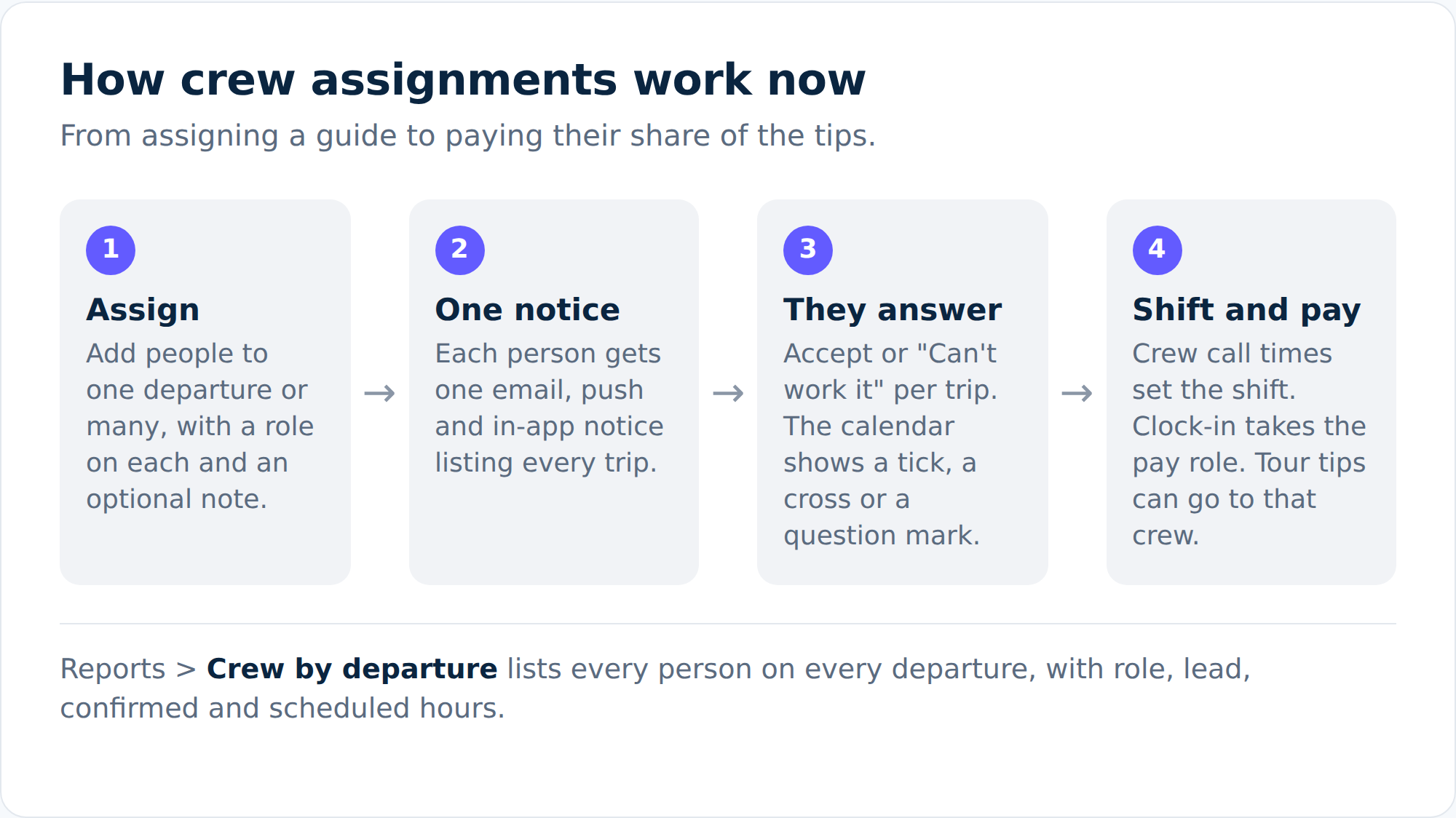
From assigning a guide to their shift and their share of the tips.
- One notice per person. Assigning someone to several departures sends them one notice (email, push and in-app) listing every trip in local time. The email links to a page with Accept or Can't work it on each trip, and Accept all.
- A note with the request. When you add crew, a "Message to ..." box lets you add a note (gear, meeting point) and ask them to confirm by email, text or TideOps push. Notify on an open departure re-asks the crew.
- Quiet saves. A location can turn off automatic crew notices: Location settings > Fleet & Tracking > Tell staff when they are assigned to a departure (on by default). A single save can also go out quietly ("Saved. Nobody was notified.").
- A role on each departure. Every crew member gets a "Role on this departure". Pick one of your Staff Roles and it links to that pay role, so a clock-in on that shift takes the right rate. Staff Roles now have a Department too.
- Crew call times. Per tour, "Crew arrives before" and "Crew stays after" (in minutes) set each crew shift around the trip. Changing them moves upcoming crew shifts, except ones you edited by hand. Find it in the tour editor under More settings > Crew and staffing > Crew call times.
- Guide ratio. A role can be left out of the guest-to-guide ratio (Crew and staffing > Roles > "Count towards client:guest ratio"), and a guide who declined no longer adds seats.
- Tour tips go to the crew. A location switch sends tips on a tour to that tour's crew, split equally, instead of into the day's tip pool: Location settings > Tipping > Tour tips go to the crew on that tour (off by default). The Tip pool report shows each crew's pot.
- Crew by departure report. Reports > Crew by departure: one row per person per departure, with role, lead, confirmed and scheduled hours, and totals by person and by role.
On Staff Schedule, tour shifts are named after the tour and role and say when the trip departs.
Manifests and passenger checks
- Custom manifest templates. Pick the fields you want at departure, reservation and guest level (contact, member, waiver on file, balance and more) and the page orientation. The departure's Manifest button offers "Print or PDF" and "Edit templates". Each tour can use its own template.
- Emailed to the crew. Set a manifest lead time on a tour and the PDF is emailed to the crew before departure. "Send to crew again" resends it marked UPDATED.
- More on the manifest. Next Steps answers, guest forms and waiver answers now print, with flagged waiver answers first. Guests booked through OTAs show pre-trip chips such as "Still to do" and "Deposit due on arrival".
- TideOps. Crew can open the guest manifest for the trips they are on: tap-to-call phone numbers, waiver flags, answers, notes and add-ons, with flagged parties first.
- Passenger checks. For trips where you must account for every guest (dive trips, for example), turn on Passenger checks: tour editor > More settings > Day of the trip > Passenger checks (off by default). Every guest is checked on and off at each checkpoint (start, any stops you add on the day, end), with All on, All off and walk-ons. A staff sign-off with a signature locks the record, after which changes need a reason, and you can download a signed PDF. It lives on the departure's Passengers tab.
Read more on Manifest.
Running departures: close-out, staff start and float plans
Each tour now picks how its departures run (tour editor > More settings > Day of the trip > Running departures):
- Staff close it out: the default, unchanged.
- Completes automatically: seats complete at the end time and post-trip automations fire. No more trips sitting as "not closed out".
- Staff start it: staff fill a departure checklist (from Forms), then Start records who is aboard and the real departure time. A float plan PDF is emailed to up to 10 addresses you choose, and "Record return" closes the departure.
What customers see: itinerary, What to Expect, galleries and Next Steps
- Website content on the tour. Tours have a short description, a photo gallery, videos (YouTube, Vimeo or a file), included and not-included lists, and an FAQ. They show on the booking page and are available to your website through the API. Find them in the tour editor under More settings > Booking page.
- Itinerary. Add up to 20 stops, each with a title, text, a photo and a time: minutes before or after departure, or words like "Day 2 morning". On the booking page it shows as a step-by-step slider, and the times follow the departure the customer picked, including sunset tours.
- What to Expect. Gallery photos can also show below the booking as What to Expect cards. Pick which ones with "Use in What to Expect".
- Policy language written once. Write your policies once (Location settings > Cancellations & Reschedules > Policy language) and they show by reference on tours, FAQ answers, Next Steps and the API. Edit them in one place.
- Next Steps for tours. The page shows the tour's own content under "About your trip", a check-in time ("Please arrive 20 minutes before departure"), and the tour's own questions, asked once per booking or of each guest. Guest names can be collected after booking: each guest card shows "Name added" or Required. A per-tour confirmation message shows on Next Steps and in emails through the
{{trip.confirmation_message}}tag, and{{trip.meeting_point}}is new too. - One message per reservation. If a customer books several experiences on one reservation, you can send one confirmation, one pre-trip and one post-trip message instead of one per item. A new
{{reservation.itinerary}}tag adds a "Your itinerary" card. Location settings > Emails & SMS > Send one message per reservation (off by default).
Tour money options
Each of these is per tour and off until you turn it on:
- Member prices: a fixed price per ticket for each membership tier. The booking page shows the member price with the regular price struck through.
- Charge when the minimum is met: while a departure is below its minimum, the customer's card is saved and only charged once the departure confirms. Customers see "You won't be charged today". No more refunding (and paying card fees on) trips that never run.
- Charge the balance: choose how many days before departure the balance is charged.
- Bill later: works on any ticket type, for bookings paid by a school or another payer. With "Verify before confirming", the customer gives a reference (for example a student ID) and a card that is saved but not charged, and the booking waits for staff to Approve or Deny it.
- Confirm each booking before charging: the card is only held until staff approve.
- Passes on tours: a pass covers the most expensive ticket.
- Buy as a gift: a gift card bought for a specific tour, named in the email.
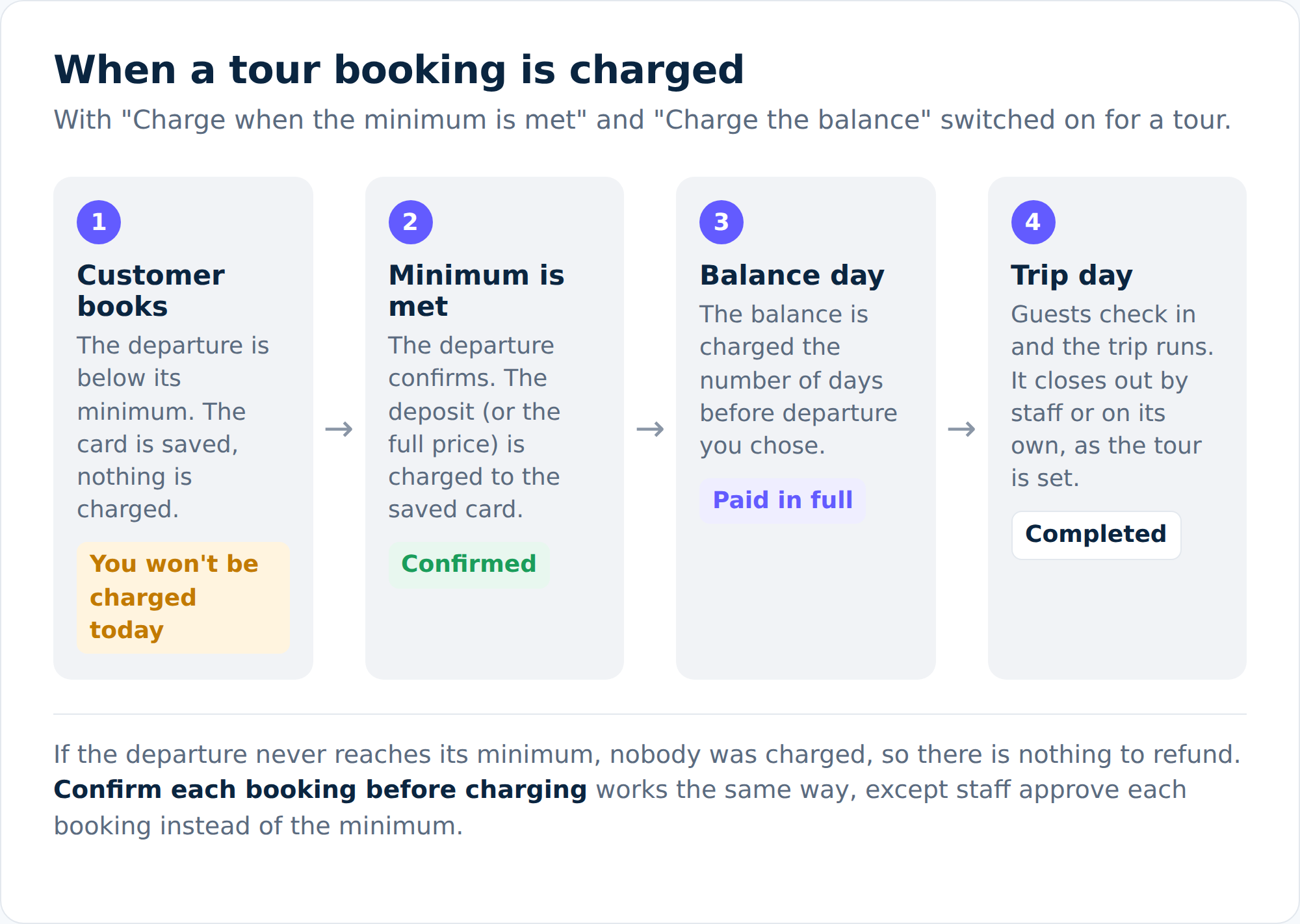
With "Charge when the minimum is met", nobody is charged for a departure that never runs.
Tour vouchers
Tour vouchers are now a full feature. A voucher is good only for the tours, tour tags or locations you choose, and always has an expiry. It can be for seats (free, or a set percentage off at today's price) or a dollar credit.
- Issue vouchers from Gift Cards & Passes > Tour vouchers, or from a customer's record with "Issue tour voucher".
- Import vouchers from another booking system using an export or our template, with a dry run that checks each row first.
- Return Credit: cancelling a tour booking can turn what was paid into a voucher. The order shows "converted to credit".
- Customers redeem them in the "Voucher Code" box at checkout on a tour, or on their Next Steps page. They get an email when it is issued and reminders 30 and 7 days before it expires.
- Set reasons, the default expiry and reminders in Location settings > Tour Vouchers. Reports cover tour vouchers and refunds converted to credit.
Vouchers cannot be spent on rentals or at the POS, so a rain check stays a rain check. Read more on Tour vouchers.
Booking windows and cutoffs
- Cutoff follows the departure. An option per tour with four cutoffs: an empty departure, one that is booked but not yet confirmed, one that is confirmed, and one that is confirmed with guides assigned. In the last case, online sales are capped at guides times guests per guide. Tour editor > More settings > Booking window > Cutoff follows the departure (off by default).
- Close empty departures early. For a listing, a start time nobody has booked stops selling online a set number of hours before, while start times with a booking stay open to the normal cutoff. Staff are not affected. Fleet & Offerings > the listing > Hours & closures > Close empty departures early (off by default).
- Different start times on some dates. A repeating tour can use other start times on chosen dates: set the time, then click the dates. Tour editor > When it runs > Different start times on some dates.
Tickets, questions and agreements
- Tickets that take equipment. A ticket can take gear from the tour's fleet, for example a Tandem ticket takes one tandem kayak. Seats stop selling when the gear runs out, and rentals, the Walk-Up Hub and OTAs all see the units as taken. Tour editor > Tickets > Equipment it takes.
- Per-guest questions can now be a tick box, one choice or several choices, as well as text: tour editor > More settings > Checkout > "Your own questions, per guest".
- Checkout agreements per tour or listing. A tour or listing can use the location's checkout agreements, add to them or replace them. Ticks are recorded, and Next Steps shows "Terms you agreed to". Read more on Checkout.
- Typed guest counts. Staff and customers can type a guest count instead of pressing + many times, capped at the seats left.
Tours on your website and other channels
- Departures for your website. The tours API returns each departure with spots left, the prices in force and a booking link, and never lists departures that have already left. It also returns the itinerary and What to Expect cards. See the public API reference.
- Links for one way of booking. For a tour sold both as seats and as a private charter, a booking link or embed can show public tickets only, the private charter only, or both, and the "From" price follows. Marketing > SEO & Embed Tools > Embed on Site > What this link shows.
- Private departures are protected. Once a group books a private departure, nobody else can book seats on it from checkout, the cart, a channel or a move. Staff can override, and it is recorded.
- OTAs stop selling empty departures inside your empty-departure cutoff.
- Rezdy imports bring in every item on an order with the right quantities.
Other tour improvements
- Tours no longer appear on the rental boards (Walk-Up Hub, Nav Board, Checkout and Return boards), cannot be turned into walk-ups by mistake, and never show as overdue.
- Tour bookings are named after the tour everywhere: the Bookings list, the dashboard, the cart, Tide Pass, the waiver page and the activity log.
- Today's Hub has Rentals and Tours sections with a Reservations or Departures switch.
- The Weather page has a Day view: the hourly forecast (wind, waves, rain) laid over every departure and rental that day, with a warning on departures outside their weather policy.
- Booking page tour calendars only light up days when a tour on that page actually departs, and private trips are never shown to the public.
- A departure's capacity is its seats per departure, and the help text now says so.
- Durations print as "1 hr 20 min" everywhere.
- Shared boats cannot be double sold: seats are checked again just before payment, at checkout, in the cart and on channel sales.
Group reservations
A reservation groups one party's bookings under a short code: a tour, two or more items booked together, or anything booked under a group name. A single rental on one date stays a plain booking, and walk-up parties never become reservations.
Every group reservation now opens on the tabbed reservation page: Home, Offerings, Guests & Waivers, Payments, Communication and History. Every link in the app (boards, Today's Hub, the calendar, Messages, emails, reports and search) follows the same rule: a booking inside a reservation opens the reservation, anything else opens its booking page.
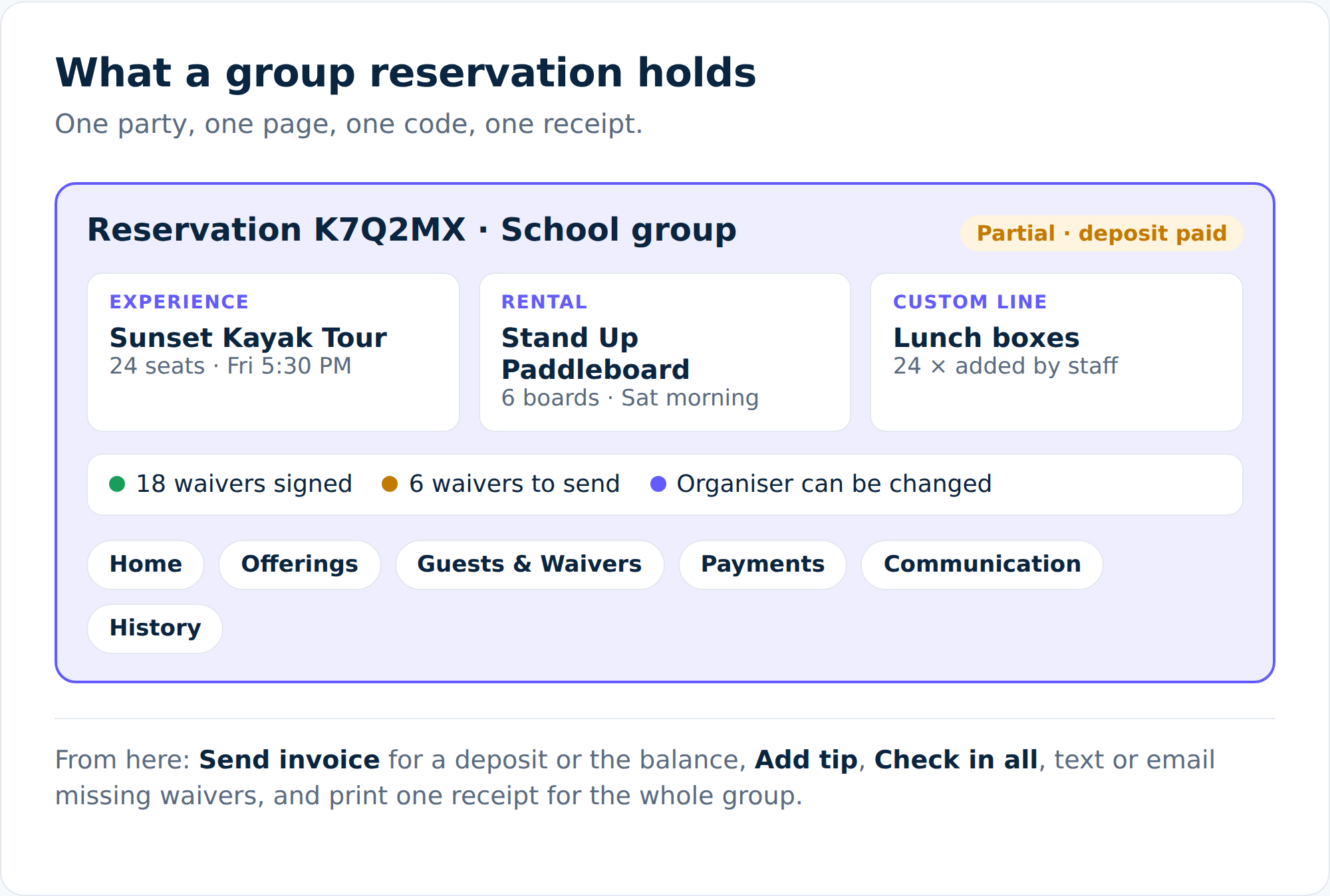
One party, one page: experiences, rentals and custom lines, the guest roster and waivers, and one receipt.
What you can do on it:
- Status and money at a glance: the reservation's own stages (Enquiry or Held, Confirmed, In progress, Completed) with a one-line reason, and a payment chip: Unpaid, Partial, Paid or No charge.
- Guests & Waivers: every guest and seat with their waiver state. Check in one guest or Check in all, Make organiser, email or text a waiver, add an existing customer and their children, answer trip questions for a guest, and see a "Ready" tag when their forms are done. "Text each guest when they sign their waiver" can send the next form automatically.
- Communication: the confirmation (what was sent and whether it was delivered, with Resend, Preview and "Edit & send"), every scheduled message (each with a switch to turn it off for this reservation only), "Send email or text", and a history of everything sent or skipped, with the reason.
- Send invoice: ask for the full balance, a deposit percentage or a set amount, by email or text, with a pay link.
- Add tip: on a tour, the tip goes on the tour line so the crew get it.
- Change organiser, Add client on a reservation with nobody on it, and edit a guest's email and phone.
- Notes on the reservation, an item, a departure or a guest, each marked for staff, the manifest or the customer.
- One receipt for the whole group, to print or email as a PDF (the ... menu > Receipt).
Start one from + New > New reservation. Search with Cmd+K by name or code.
If you would rather keep single bookings as bookings, an owner can switch this off at Location settings > Your Business > Sidebar & Menu > Group reservations (on by default).
Read more on Orders.
Booking page and checkout
The booking page studio
Marketing > Booking page is now a studio for your public booking page, with Layouts, Performance, A/B tests and Settings tabs.
- Layouts: build a page from sections ("Start from your current page" or "Start blank"). Each section has real options: hero photo and shade, buttons and style, heading fonts, reviews, FAQ, and how a wide banner picture fits. A Catalog page / Item page switch lets you design each item's page too: gallery style, title area, badges and "Add to your trip". Publish one layout as live, and restore any earlier version from the history.
- A/B tests: show up to four layouts to your visitors and compare them. A test can show to new visitors only, to desktop or phone only, and stop on a date.
- Performance: a funnel of visits, opened an item, started checkout and booked, split by layout.
Nothing changes on your live page until you publish a layout.
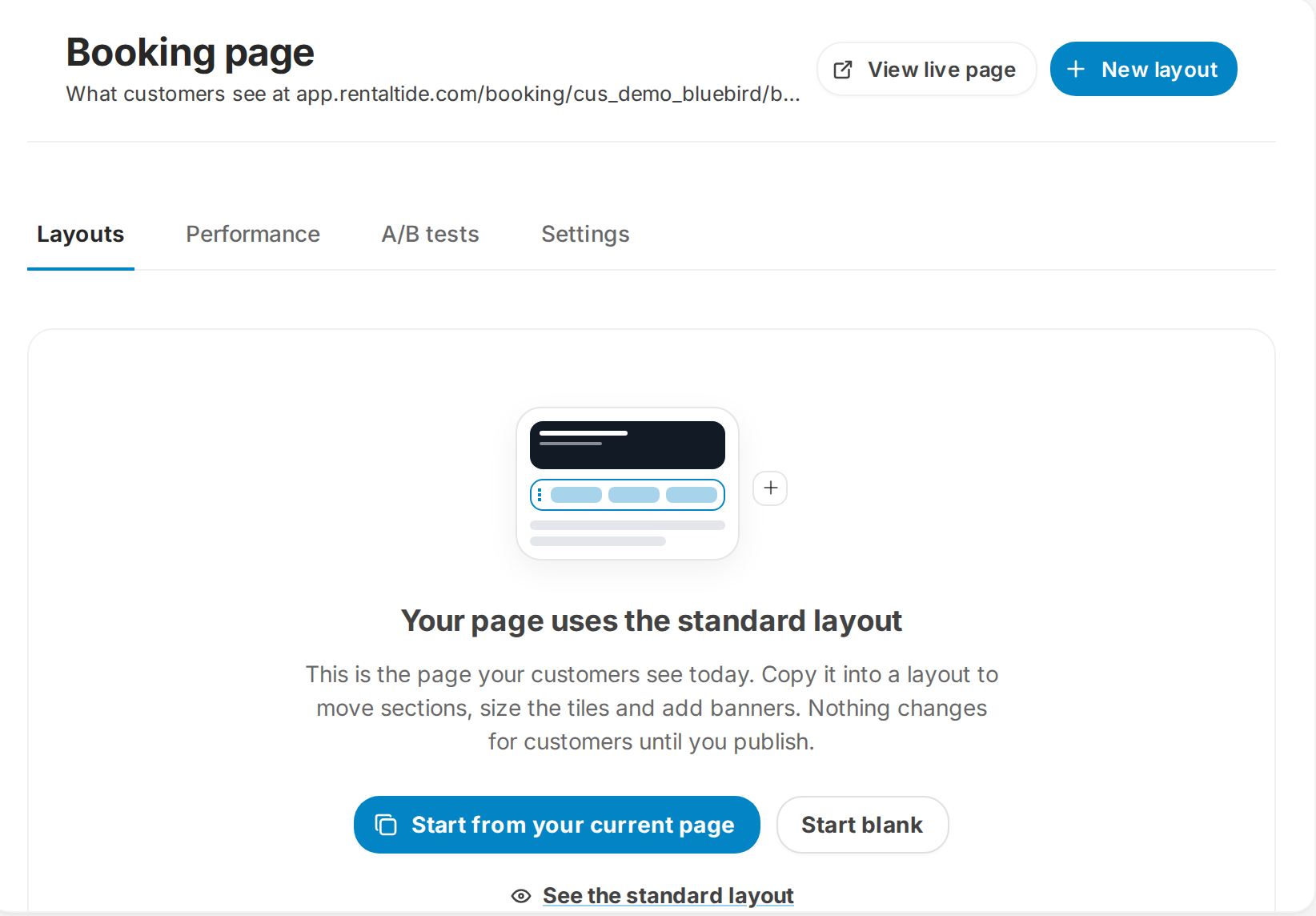
Marketing > Booking page: start a layout from your current page or from blank. Demo data.
Shop products on the booking page
A new Shop shelf section in the studio sells your shop products (towels, sunscreen, merch) online in the same cart and the same card payment as the booking. The shelf can also hold gift cards, passes, bundles and memberships, which open their own checkout. A product shows once it is set to sell online. A refund of a shop item takes back only that part of the payment.
Checkout options
All of these are off by default unless noted:
- Pay at rental: take a card at booking and charge nothing until the rental. Customers see "Reserve Now · $0.00 today". Set it per listing under Checkout rules.
- Balance due before the booking starts: checkout and Next Steps show "Balance due by" a date, and late bookings pay in full. Location settings > Online Booking > Checkout.
- Your own confirmation page: send online customers to a page on your website after booking. Location settings > After Booking > Next Steps Page.
- Promo codes and automatic discounts: choose whether they combine. Location settings > Online Booking > Checkout > "Promo codes combine with automatic discounts" (on by default, as before).
- Open on the next day with availability when today has no times left. Location settings > Online Booking > Booking Page.
- Customers can switch items when they reschedule, paying any difference first. Location settings > After Booking > Cancellations & Reschedules > "Let customers switch to a different item".
- Customers can change the length of hire from their reschedule link. Same section, "Let customers change the length of hire".
More options you can use:
- Private links expire when you choose: the standard time, 14, 7, 3 or 1 days, or a date, and an expired link now really closes for the customer. Set a default in Location settings > Checkout > "Private links expire after", or per link with "Link expires after". Read more on Private links.
- Add-ons that need approval: mark an add-on "Requires approval" and any booking with it becomes a request.
- Booking terms appear on every checkout, including pop-up and single-item embeds, and you can rename them (Location settings > Checkout > "Booking terms").
- The booking page assistant answers from your real listings and settings, says when it does not know, and can talk out loud.
Smaller checkout changes, on for everyone: checkout says why a booking is a request to book, Continue scrolls to the first missing field, picking a date lists only the tours running that day, the order summary names the units booked, and dates of birth follow your location's date format.
Next Steps
- Your free photo: staff can take a guest photo at check-in or check-out, and the customer sees it on Next Steps within seconds, with a download button.
- Signature and photo ID on invoices: an invoice can ask for both, kept as evidence if a payment is disputed. Location settings > Money > Fees & Payments > "Ask for a signature and photo ID on invoices" (off by default).
- Waivers in one place, listed by person. Next Steps only asks for a waiver when one is needed and counts waivers already on file.
- Meet at shows the launch spot or meeting point with a map.
- Each listing can have a short description and its own Next Steps and email message.
- The review request is no longer shown before the trip.
Read more on Next Steps.
Waivers
- Who is taking part? The signing page asks Just me, My child (without me), or Me and my child. Location settings > Operations > Waivers > "Ask who is taking part" (on by default).
- Minimum age to take part: a hard stop at signing, set in Waiver Studio > "Who signs this".
- A parent or guardian signs a minor's own waiver, and staff screens show "signed by" the parent.
- Photos while signing: a location switch, "Waiver: take photos while signing" (on by default, as before).
- Waivers match the listing: a waiver counts only for listings that need that same template, wherever it was signed.
- Your branding (logo and colour) on waiver emails, PDFs and signing pages.
- Send waiver to customer by email or text from a rental booking's Waivers card.
- Returning customers skip the waiver on new bookings, if you allow it (off by default).
Read more on Waivers.
Spa, wellness and sessions
Businesses that run sessions rather than rentals can now pick "Spa, Wellness & Retreats" as their business type. The app then says "Facility" instead of Fleet, and the booking page counts sessions instead of rentals. A listing switch, "Each session keeps one length", stops sessions of different lengths sharing a room.
Calendar and front desk
Several locations at once
Pages that support it (the Calendar views including Harbor, Today's Hub and the Walk-Up Hub) now let you tick more than one location and save the choice as a named set. On All locations, the location key above the calendar becomes on and off filters. The Bookings list and the Calendar open on All locations each session, each row carries a location tag, and when you narrow it a notice offers "Show all locations".
Availability month view
Calendar > Availability (shortcut 5) shows each day of the month as a summary, for example "14 of 20 available". Click a day to see every rental and tour marked Full, a number available, Part booked or not available. It is the quickest way to answer "what's free this month" on the phone.
Message adds a free-text block across dates (with optional times, colour and notes), drawn on every calendar view. Tick "Blocks bookings" and it also closes those days, or only the rentals you choose, everywhere customers book.
Other calendar changes
- Block time from a drag: drag on the calendar, then use Block beside Quick Book. Block one unit or all of them, with a reason saved to the Maintenance log, and a warning if bookings already sit there.
- Tide times on the Day and Timeline views and the Journey Board, for staff. Location settings > Booking Page > "Show tide times on the calendar" (off by default).
- Quick Reschedule offers start times on your slot step inside that day's opening hours, and can change an hourly booking's length.
- Quick Book fits a laptop screen, shows the total and can add a note to the customer.
- A quote on the calendar has "Open quote" and "Delete quote".
- A booking with no unit is drawn on a free lane instead of on top of another booking.
- Single-key shortcuts no longer fire while you type in a chat box or menu.
Today's Hub
Today's Hub now lists the day in dock order: Overdue, Up next, On the water, Later today and Done. Each row has one next action (Call, Send waivers, Mark all here or All aboard), and the manifest has Here and Aboard toggles. Tours have their own panel. Read more on Today's Hub.
Walk-Up Hub
- Shop items on the ticket: "Point of sale" on a party card adds shop products to the open ticket, and the one checkout charges rental and goods together.
- Staff PIN (optional): ask for a PIN before starting, editing, returning, splitting or checking out a ticket. One PIN lasts three minutes on the device, and the closed ticket shows who started, closed and completed it. Location settings > Operations > Check-In / Check-Out > "Ask for a staff PIN on ticket changes" (off by default).
- Card name check: after a card is tapped, the name on it is checked against the customer's profile. If they differ, staff choose whose profile gets the card, or not to save it. Charging a card on file that carries another name warns first.
- Pick a specific boat for listings where customers choose a unit, and see it on the card.
- Look at any day, and open a customer in a side panel without leaving the board.
- Boats out on a walk-up are counted online, so the booking page, checkout and channels cannot sell them twice.
- "View rental ticket" on a walk-up booking shows the party, times, who paid and the card.
Read more on Walk-Up Hub.
Staff booking tools
- Staff can book any start time and length from the listing's minimum, priced by package or hourly rate. Location settings > Online Booking > Booking Rules & Cutoffs (off by default).
- Email optional for staff bookings, with a "Don't send the confirmation" tick. Same section (off by default).
- External ID: give bookings a readable reference (date, code and surname) that works in search and in the
{{booking.external_id}}merge tag. Same section (off by default). - Next-stage button: a green button leads the booking header on the booking's day: "Check in", "Move to" a stage, or "Mark returned".
- Send payment link on any booking that owes money. The link email and text are editable in Outreach and state the pay-by date.
- Split units moves some units of a multi-unit booking onto a new line.
- Already paid: book a customer who paid by cash, bank transfer or cheque, and the confirmation shows paid.
- No Show frees the unit so it can be re-sold. The booking keeps its record, and a no-show can be rescheduled.
- Moving a booking to a different listing now takes that listing's price.
- "Needs approval" chips say why a request needs approval.
- Book anyway on a closed day: staff can book a day that is closed. It shows as "Closed (staff can book)", with a warning.
- Built-in statuses: hide statuses you never use (such as No Show or Awaiting Minimum) from the Change status menu. Location settings > Pipeline & Nav Board > Built-in statuses.
- Loyalty: new switches to stop discounted items earning points, for bookings and POS sales (Integrations > Loyalty).
Listings: one page per listing
Each listing now opens on its own page with tabs: Overview, Booking page, How it books, Units, Pricing, Hours & closures, Extras, Checkout rules and History, and one Save bar for all of it. "Add a listing" is one dialog that can start blank, copy a listing or import from your website. Pricing Studio is now the listing's Pricing tab, with a "Price check" that prices a test booking against unsaved seasons.
Fleet & Offerings is grouped by location and category. Each row shows units, the from price, bookings in the last 30 days and any warning (no units, no pricing, no season). Tick rows to show or hide, change booking rules or bulk edit them. Version history restores a whole save or one item, kept for 90 days.
Read more on Inventory and Pricing Studio.
Forms, checklists and maintenance
- Checklists over several days: "Save progress" keeps a long checklist across devices, and each tick records who and when. Forms > Outstanding items shows what has not been ticked in 7, 14 or 30 days.
- Every N days per asset: a new "When" option, with a Checklist log showing each asset's last check.
- Paste a list turns a pasted checklist into form fields, and the form builder supports drag and drop.
- Maintenance vendors: store contact, account, payment terms and insurance, with warnings for lapsed cover. Log work can scan a receipt or invoice into labour and part lines; nothing saves until you do.
- Work orders have notes, and predictive maintenance items can be added and edited by hand.
Slips
Slips now work like Bookings: one Slips list with filters (Requests, Active, Upcoming, Overdue, Unsigned, Waitlist and more), a slip reservation page, a new-reservation page and a Slip inventory board grouped by dock, land or section. Slip settings have their own group in Location settings. Offering a slip from the waitlist emails and texts the customer, offers lapse at their deadline, and online waitlist requests are saved properly. Read more on Marina.
Payments and money
- Paid before RentalTide. If you are switching to RentalTide and took deposits in your old system, you can record them as "Paid before RentalTide", with an optional note. It shows on the staff New booking page, the booking's Payment screen and the order's Collect payment dialog, and Reports > Paid before RentalTide lists them for reconciling. Turn it on at Location settings > Money > Fees & Payments > "Allow Paid before RentalTide payments" (off by default).
- Notes on payments. Collect Payment takes an optional note on cash, cheque, bank transfer and Paid before RentalTide.
- Change price per person. Change price shows the per-person price beside the total.
- Add tip from the booking's ... menu, either added to the balance or paid in cash.
- Send invoice on a reservation with a deposit amount (see Group reservations).
- Receipts. The full receipt's Email button sends again, every gift card buyer gets a receipt, and a whole order or reservation has one printable receipt.
- Bank transfer at the till for customers paying their account by direct deposit.
- Account limits: "New customers can charge to account" (on by default) and the till refuses an account sale over the customer's limit.
- Late returns. Late Returns has its own section (Location settings > Money > Late Returns) with a grace period, and when the flat late fee is switched on, it is now charged on late returns. Check that setting if you have it on.
- Damage deposit email. Charging a damage-deposit hold now emails the customer, with an editable template.
- Card Rules. Refuse card brands you do not want online, and flag foreign, prepaid or previously charged-back cards. A flagged booking can be held for your approval (the card is held, not charged) or just noted. Location settings > Card Rules, all off by default.
- Chargebacks. Every new chargeback emails owners a clear guide: the facts, what not to do, the steps to answer it and evidence tips. Read more on Chargebacks.
Gift cards, passes and memberships
Gift Cards & Passes
Marketing > Gift Cards is now Gift Cards & Passes, with Gift Cards, Passes, Vouchers, Promotions and Experiences tabs.
- Passes and bundle vouchers apply on the booking itself: at online checkout ("Have a pass or voucher?"), at the Walk-Up Hub ("Use a pass or voucher") and on staff bookings. Staff can sell vouchers, and any staff member can redeem one.
- Experience gift cards: sell a specific tour or rental as a gift card, with a report on how those cards are spent. Tour and rental pages show "Give this as a gift".
- Gift card offers with their own link that opens straight into the gift card checkout.
- Sell gift cards at the till: POS > More ways to pay > "Sell Gift Card". Print the code on the receipt, email it now, or email it on a date.
- Send later: a gift bought online can be sent on a chosen date.
- Import gift cards from a CSV (a Square export maps itself), with a dry run first.
- Every gift card email has a printable PDF.
- Insiders-only offers, buy-one-get-one-free passes and per-customer limits.
- Passes can be tracked in hours, limited to certain days of the week or to certain locations, given as a gift, and moved to a new holder.
- A blank gift card expiry now follows your business setting, and the Extend expiry dialog offers "Never expires".
Read more on Gift cards and Bundles.
Memberships
- Pause at the end of the paid period, with an optional pause fee and resume date.
- Past-due dues pile up where you can see them: Collect or Collect all, by card on file, card reader, cash or cheque, or Write off.
- US bank account dues, with an optional discount per tier.
- Member terms new members accept through a welcome link before booking.
- Memberships show on the customer profile, and the Check-In Hub shows each person's membership and anything they owe, with a one-tap Renew.
- Member app settings (Memberships > Member app): a counter QR code, a welcome offer, and member community links shown only to active members.
Read more on Memberships.
POS and inventory
- Register layout: More > "Display on this till" has Lock layout, Tile size, Columns and Text size. Under "This device": high contrast, bold text and Focus mode, which hides the top bar so the till gets the whole screen. Each till keeps its own home arrangement.
- Faster charging: Cash and Card are large and on top, everything else is under "More ways to pay", and tapping a tender starts the charge. A reader payment can be cancelled from the screen.
- Book tile: book today's walk-up from the counter and add it to the ticket. Turn it on in POS > Arrange tiles > Shortcuts.
- Sell Pass from the POS onto a customer's account.
- Till sessions: count the float at open and close, record paid out and paid in, and get a prompt for a till left open from an earlier day. Location settings > Registers & Receipts > "Count the till at open and close" (off by default).
- Stock counts by scanning: start an audit, pick a section, scan with a scan gun or camera, and let several staff count into one draft. Reconcile once at the end. Read more on Inventory audit.
- Recently deleted: deleted POS products are kept for 30 days and can be restored exactly, including variants, prices and stock.
- Product options like size and colour, with a stock grid and extra barcodes per variant. Merge products in Bulk Edit, a Vendors page, and "Print labels" from the product editor.
- Tips: ask for a tip only for chosen categories, or turn off the tip prompt at the POS.
- Receipts can drop the big sale barcode (Registers & Receipts > "Print a barcode on receipts").
- "POS Settings" is now called Terminal Settings.
Read more on Register and Till open and close.
Customers, marketing and outreach
The CRM is here for every business
Since November 20 every business has the CRM, except on the Lite plan. Your customers' history was loaded into it, so it is useful from day one. You will find a CRM group in the sidebar with CRM home, Inbox, Customers, Smart lists, Companies, Pipelines, Tasks, Campaigns, Automations, Reviews, Reports, Duplicates and Messaging setup. Cmd+K finds every CRM screen.
Nothing you use today changes because of it. Anything that would change an existing flow (for example a team view of the Inbox, a marketing-texts box at checkout, or review requests to every guest) stays off until you choose to turn it on. One thing you will notice: guests on a roster and people who sign a waiver now become customers, so your Customers list grows. New contacts start as "never asked" for marketing, so nobody is subscribed without consent.
- Smart lists: choose the columns you want, then tag, assign an owner, add people to a workflow, send a campaign or export, in bulk.
- Duplicates: a review queue that shows two records side by side, why they matched and what a merge would do. Keep this one picks the record to keep. A merge now moves everything linked to the customer (bookings, family members on a membership, Tide Pass links) in one step. A shared phone number no longer makes two people one customer.
- Companies: a list and a page per company, with its contacts and bill-to details.
- Tasks: Overdue, Due today and Done today, with My tasks, Unassigned and Everyone, repeating tasks, and a Today card for your dashboard.
- Reviews: your reviews with rating tiles and filters, Reply and Draft with AI. For sites that do not accept replies from other apps, it gives you the reply to copy and a link to open the review.
- Automations can now start from a customer (entering a segment, a birthday, clicking a campaign link) and do things: tag, set a field, create a task, open or move an opportunity, assign someone, notify staff or call a webhook. Try it on a customer shows what would happen for one person before you switch it on.
Read more on Customers.
The customer profile
The customer page was redesigned:
- Header: status, group and loyalty chips, then Scan ID, Statement, Charge in POS, New booking, and a menu with Edit details and Ban customer.
- Account card that leads with what they owe, their credit, or settled.
- Timeline tab: a Summarise this customer AI summary, money totals (lifetime spend net of refunds, bookings, average order, refunded and balance), their email and text consent, and a filterable timeline.
- Messages tab: Send a message by text, email or Tide Pass push, on the same Inbox thread their reply comes back to. Communication history shows what they opened and clicked.
- Wallet tab (was Cards) holds cards, passes and gift cards. Membership shows one card per membership, with Sell membership.
- Emergency contact is back on the profile, and Guest notes is the one place to write notes.
- Your own customer groups: add, rename and retire groups beside the five built-in ones, from Groups on the Customers list. Custom groups also work for POS group pricing.
- Clicking a customer elsewhere in the app opens a side panel that pushes the page aside instead of covering it.
Outreach: every message your customers get, in one place
Outreach in the sidebar is where all your customer emails and texts now live, with sections for Automations, Templates, Campaigns, Activity, Audience and Settings.
- Automations are grouped by when they go out, with on and off switches. The editor plans sends for a real booking in your location's time zone.
- Templates show how many automations use each one before you save, and keep a history you can restore from. Preview renders the real message for a real booking, warns you about blank merge tags, and sends you a test.
- Activity lists every message sent, skipped (with the reason), bounced or scheduled, exactly as it went out.
- Build with AI drafts templates and automations, created switched off so you can check them first.
- Merge tags has Copy for AI, to paste the list into ChatGPT or Claude when you are writing a template.
- Use my own header and footer on a template if you design your own HTML emails. A Short unsubscribe footer setting leaves your name and address out of the unsubscribe footer when your own footer already shows them (Location settings > Emails & SMS, off by default).
- Five starter templates (Season opener, Sale, Event, Member news, Newsletter) and live blocks for a promo code or a tour or rental card that always shows the current price.
- New merge tags include
{{booking.check_in_ticket}}(a check-in QR code) and{{booking.addons}}.
Read more on Email templates and Text templates.
Campaigns
- Build the email in the Templates editor, with a live desktop and phone preview and a test send. Send now or schedule it in your location's time. Before it goes, a review checks the subject, links, unsubscribe link and audience, and warns if the same audience got a campaign in the last 24 hours.
- Send to people who opened. From a sent campaign's report, send a copy only to people who really opened or clicked. Automatic opens by Apple Mail do not count, and unsubscribes and spam reports are left out. It sits beside the existing resend to people who did not open.
- Send to a whole list. Big campaigns now go out on their own lane, so they never hold up your booking reminders. Each recipient is logged, a first big send warms up gradually, and you get an email when a send in batches starts and when it finishes. A campaign that reaches nobody now says so.
- Better audiences. New segment rules: booked a product or tour, bought an add-on, a checkout answer, booked direct or through an OTA, bought a gift card, on a waitlist, birthday month, city, postal code, distance from a location, opened or clicked an email, and any custom field. Built-in audiences, such as people who engage with your emails, are locked; Save as my segment makes a copy you can edit. Add your own custom fields under Audience > Fields, each with its own merge tag.
- Export CSV on any saved segment, with email and text consent columns.
Read more on Campaigns.
Importing customers
- Constant Contact exports import as they are. Unsubscribes, bounces and complaints are recorded first, and nobody is subscribed without consent.
- Update existing customers overwrites matched customers from the filled cells only, so you can export, edit in Excel and import back.
- New columns: Customer since, segments to add people to, store credit, spend before RentalTide, and your custom fields.
Read more on Import.
Staff and scheduling
- Draft and publish. New and edited shifts are drafts until you publish them, and the Publish dialog asks who to tell: people with changes, all staff, or nobody.
- Open shifts staff can claim, with Approve and Decline.
- Views by week or month, grouped by staff, role or activity. Copy and paste shifts, drag to move them, and Alt or Option-drag to copy.
- New permissions: View Own Schedule Only, Publish Staff Schedule and Manage Tips. Existing staff kept their access.
- My calendar in the profile menu for every staff login, with a link to subscribe from a phone calendar.
- Timesheets: each punch shows where it was made (inside or outside the geofence) and scheduled against worked time. Pay periods can be approved and locked.
- Tip pool: share it by hours, equally, or by role percentage. Financials > Tips Owed records tip payouts.
- Kiosk mode: start it from Manage Staff or the profile menu. Manage Staff is now one list per person, with PIN, kiosk access and skills, and staff are deactivated rather than deleted.
Read more on Schedule and Timesheets.
Reports
- One Reports page. Every report opens on screen with location, date and option filters, then exports to Excel, CSV or PDF.
- Report builder: "New report" lets you pick the data, the numbers, the rows, a column split, filters, a comparison with last year and a chart. Save reports, share them with your team and star your favourites.
- Scheduled emails: built-in reports have "Schedule", and saved reports have "Email it on a schedule". Each person gets their own copy, run with their own access. Bookings and Crew by departure can cover dates still to come (today, tomorrow, next week).
- Revenue means one thing everywhere. The Home tile that used to say "Revenue" now reads "Booked value".
- New reports include Crew by departure, Tip pool, Paid before RentalTide, tour vouchers, and refunds converted to credit.
- The Bookings export adds nights, units, guests per type, group and finance reference after the existing columns, so your sheets keep their layout.
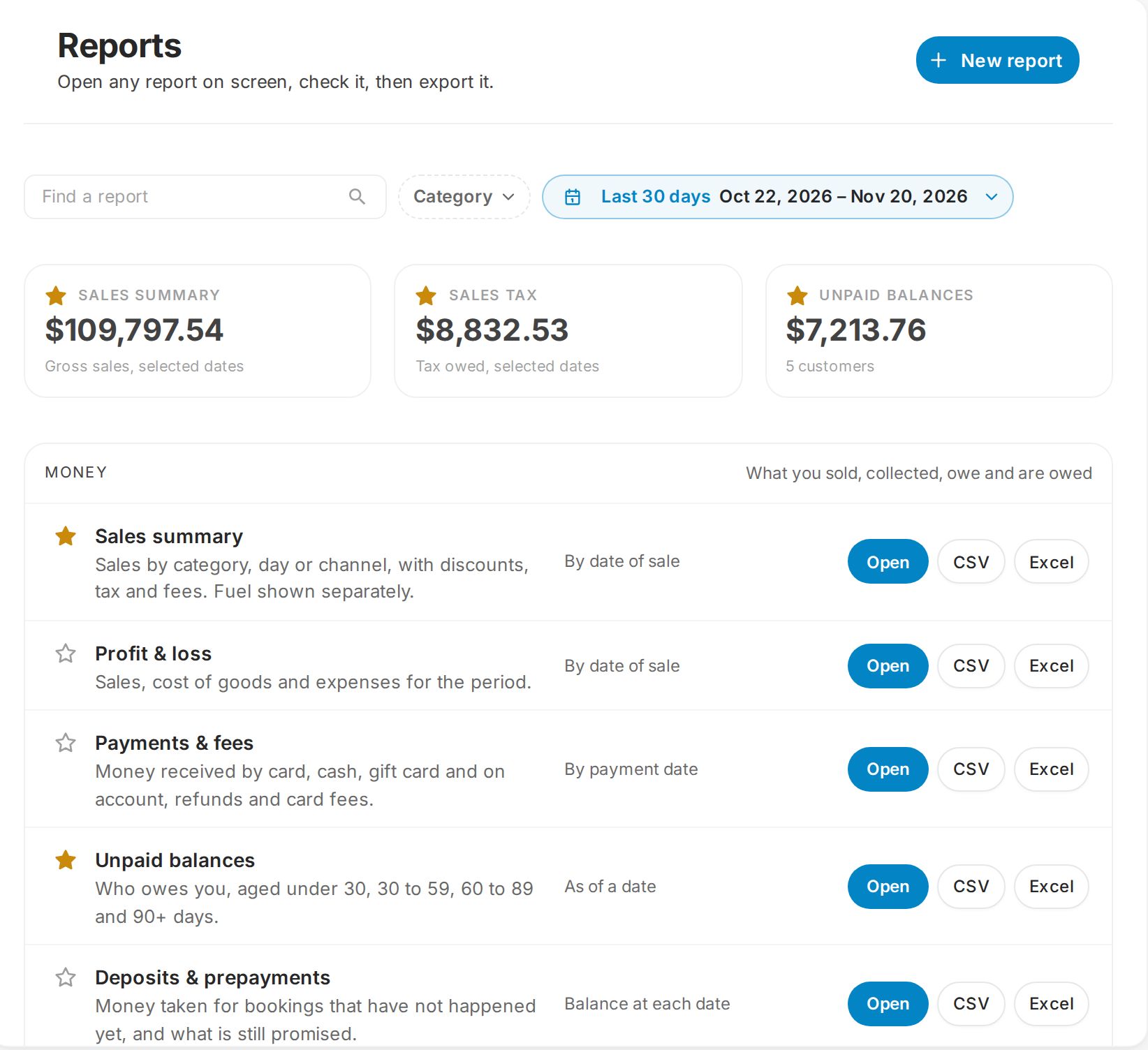
Reports: open any report on screen, star your favourites, or build your own with New report. Demo data.
Read more on Exports.
Distribution, integrations and the API
- Distribution. Every sales channel is managed from one sidebar page: RentalTide's own sites, resellers and travel agents, OCTO and API partners, and Viator. You see channel sales, money owed to you and listings on each channel. Connect a reseller in two steps and send them a starter kit. On each reseller's page you can pause selling, pick which listings (and which lengths) they may sell, see their bookings, and record payouts. Read more on OTAs and resellers.
- OCTO. Resellers using the OCTO standard can now connect to RentalTide directly. Every reseller booking carries your Next Steps checklist (waivers, ID, briefing and any deposit due on arrival), and its voucher code can be scanned or typed in calendar search or at the kiosk to open the booking. Read more on OCTO.
- book.rentaltide.com. RentalTide's own booking site gives each public listing a full page (photos, highlights, itinerary, meeting point, what to bring, reviews and FAQs) and your business a storefront. Customers book and pay through your normal checkout, and bookings carry a "book.rentaltide.com" tag. Each listing has a Public title for these pages and Google, edited in the listing's Public listing step, with "Draft with AI" and a private preview link. You can opt a location or a listing out from Distribution.
- Google Things to Do now shows the price customers actually pay at checkout, your listing photos and your real cancellation policy.
- Opening hours for your website: an "Opening hours" embed under Marketing > SEO & Embed Tools > Embed on Site keeps your website's hours in step with RentalTide.
- Multi-location booking pages: a business with two or more locations can build one page of tours and rentals from all of them, and share or embed it. Booking page > Multi-location.
- Booking links in the API: every listed rental now has a
bookingUrl, like tours already had. - Your RentalTide website (Boardwalk): turn a site off and on, choose one website for all locations or one per location, create activity pages from your listings (with your availability calendar and prices in the booking card), and show your own star ratings once you have three or more. Sites load faster on phones, and the chat button sits in the phone Book bar. Read more on Website builder.
- Xero: new opt-in choices in App Store > Xero: send one invoice per booking instead of a daily journal, send sales on account as draft invoices, and create draft supplier bills from received stock.
Your AI assistant: Claude, ChatGPT and Perplexity
The RentalTide connector now has over 220 tools. Your assistant can now work with the POS (products, folders, stock counts, vendors, sales by product), all 20 runnable reports, waivers, booking edits (reschedule, add-ons, check-in and check-out), staff shifts and time off, memberships, gift cards and vouchers, customer groups, closures, promo codes, campaigns (as drafts) and more. It can find where any setting lives.
It never charges, refunds or sells. Actions that change money or delete things ask you to confirm first, and large bulk changes need an extra step. Every inventory and pricing change records who made it (a person, Claude or Skipper), and pricing history shows what each save changed so a mistake can be rolled back.
Only an Owner can connect it, and every action is limited to what that Owner may do. A connection made by someone who is not an Owner needs to be reconnected by an Owner. The "Get ready to take bookings" card on Home now offers "Add RentalTide to your AI assistant".
Skipper, the assistant inside RentalTide, can now talk out loud, reads your listings' amenities and descriptions, searches our help docs, and asks before every change. Read more on What Claude can do.
Mobile apps
TideOps (for your staff)
TideOps was redesigned (version 1.2.1 in the App Store) with five tabs: Today, Schedule, Requests, Hours and Team (Team is for managers). Staff can clock in by role, switch role mid-shift, declare cash tips at clock-out, claim open shifts, confirm or decline crew assignments, ask for swaps and time off, and see their hours and tips for the pay period. Crew trips appear on Today, and crew can open the guest manifest for the trips they are on. Sessions stay signed in until a week after last use.
If your team clocks in somewhere else, you can turn the TideOps time clock off: Staff Schedule > Geofences > "Staff clock in and out in TideOps" (on by default).
Tide Pass (for your customers)
Tide Pass (version 1.1.0) is now for every customer, not just members. Anyone with a booking, a waiver or a membership can sign in. Members book at their own price in the app, and anything owed goes to your web checkout. Members can cancel their own bookings under your usual rules, and the "Tomorrow" and "Starts in 2 hours" reminders now send.
New settings for the app:
- Who can check in from Tide Pass (Everyone, Members only or Nobody) and Who can end their rental from Tide Pass, under Location settings > Operations > Check-In / Check-Out. Both need the Walk-Up Hub.
- Optionally, app check-ins can go straight to On water, and guests can share their location so the hub shows "Left the dock" or "Returning". Same section, off by default.
- Memberships > Member app: a printable counter QR code, a link to the app after a waiver, a welcome offer, and members community links shown only to active members.
Read more on Tide Pass.
Finding your way around
- Search finds settings. Cmd+K (Ctrl+K on Windows) now finds where any setting lives and opens that exact row. If the feature is off, it offers to turn it on.
- The gear menu is a fixed list (Location settings, Business profile, Manage Staff, Forms, Features, Developers) with your recent pages below.
- Appearance: each staff member can choose Light, Dark, System or Custom under My Profile > Appearance. Custom has high-contrast presets, your own colours with a contrast readout, and wide scrollbars. "Compact layout" fits more of the booking page and the Bookings list on screen.
- Asking for access: when a page is blocked, staff see which permission they need and can send a request. Owners and admins approve or deny it from the bell.
- Test Mode stays private: a sandbox location sends no emails, texts or pushes (they are logged in Activity instead) and stays out of channels and accounting exports.
Smaller fixes you may notice
A lot of smaller fixes went out this month. These are the ones you are most likely to notice.
Emails and texts
- The Email button on the full receipt sends again, and gift card delivery emails send again.
- Booking dates and reminder times in emails use your location's time zone. Some had been hours off.
- Emails name your business, never RentalTide, and an order sends one confirmation instead of one per line.
- A draft automation no longer stops your confirmations.
- Email text colour survives Gmail, and branded emails fit phones.
- Gmail and Yahoo one-click Unsubscribe is now recorded.
- Sign-in codes reach Yahoo addresses again, and Australian numbers without a "+" receive texts.
Bookings and availability
- Units shared between listings, or listed under several types, show the right free count.
- A day your schedule closes is closed everywhere, and a listing's own holiday price beats the location's.
- A booking taken back out of cancelled blocks its unit again, and a cancelled booking keeps its real date on the Journey Board.
- A staff booking whose price failed to load is refused instead of saved at $0.
- A discount on a booking made from the calendar scales tax and fees with it.
- Hourly listings notify the waitlist again.
- Customers list page 2 and beyond no longer jumps back to page 1.
Money
- Tax-inclusive (GST) locations show the right GST on the booking, at check-in, in discounts and on refunds.
- A price cut after check-in sticks, and a listing with a 0% deposit is paid in full, never $0.
- The suggested damage hold is the deposit, not the deposit plus the hire.
- A second refund of the same amount goes through, and a POS sale that is fully refunded no longer shows a Refund button.
- Quick Book's "Send payment link" works again.
- Saved cards are only offered at locations that use the same Stripe account.
POS
- Card reader timeouts, busy readers and freezes are handled, and a reader payment can be cancelled from the screen.
- Price label barcodes scan, inventory search finds UPCs, and the camera scanner stops reading codes that are not there.
- Tax-inclusive mode follows the setting without a reload.
- Paid out and paid in save, and a drawer with no sales closes.
Waivers and Next Steps
- "Is this you?" no longer files a waiver on the wrong account.
- A party member with a waiver on file is not asked again, and waiver counts follow the party.
- Next Steps always shows the location and business name, and add-ons bought there reach your reports.
Display
- Text stays readable on dark backgrounds and custom colours across the booking page, the calendar and reviews.
- Date pickers follow your location's date format and first day of the week.
- Tills, boards and the calendar take a new release by themselves when they are idle, so a screen left open all day stays current.
- Nine languages now have every screen translated.
Questions
If something here does not look the way it is described in your account, or you want help turning something on, message us from the help button in the app. Many of these features are settings: the Getting started section and the pages linked above explain them in more depth.